Today, in class we learned about the command line (Windows) / Terminal (MAC). The command line is a user interface that is strictly written in code. The command line lacks the GUI (Graphical User Interface) that we normally see when we move our way through the computer.
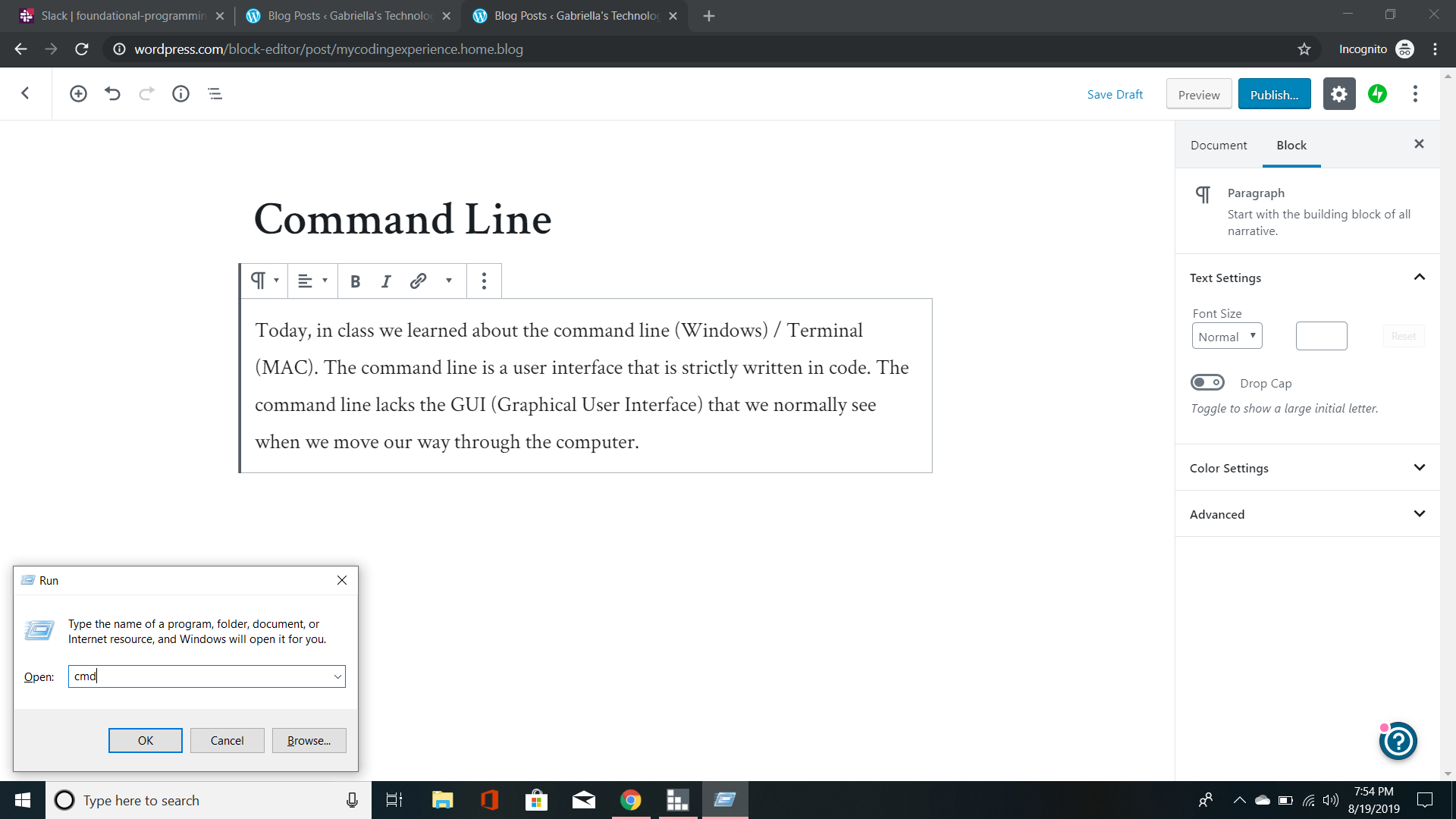
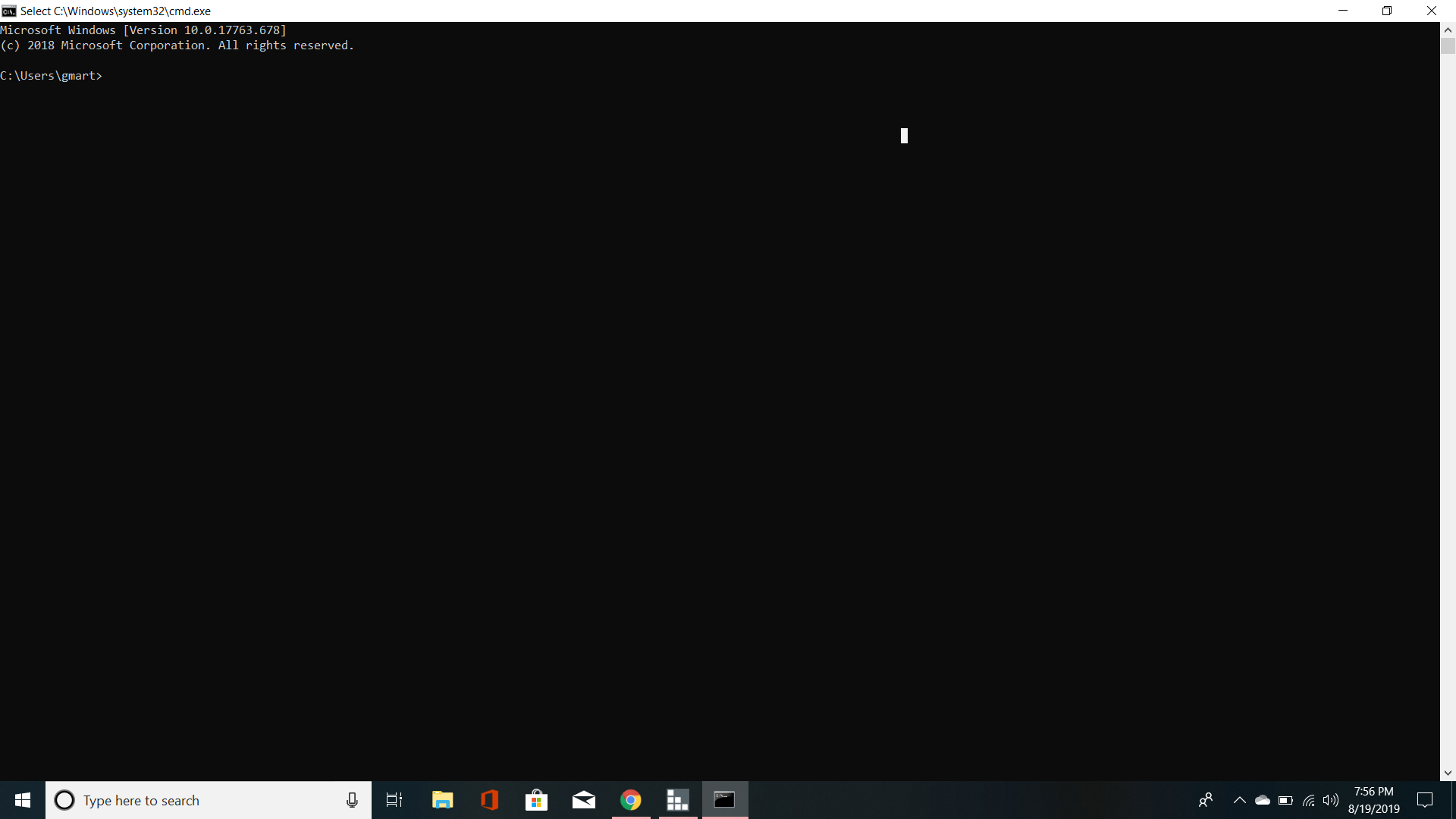
In class we learned the basics of how to create, view, change, and remove a directory. A directory is another word for a folder. Inside that folder you may find a document.
But first we need to check the list of files and directories on file.
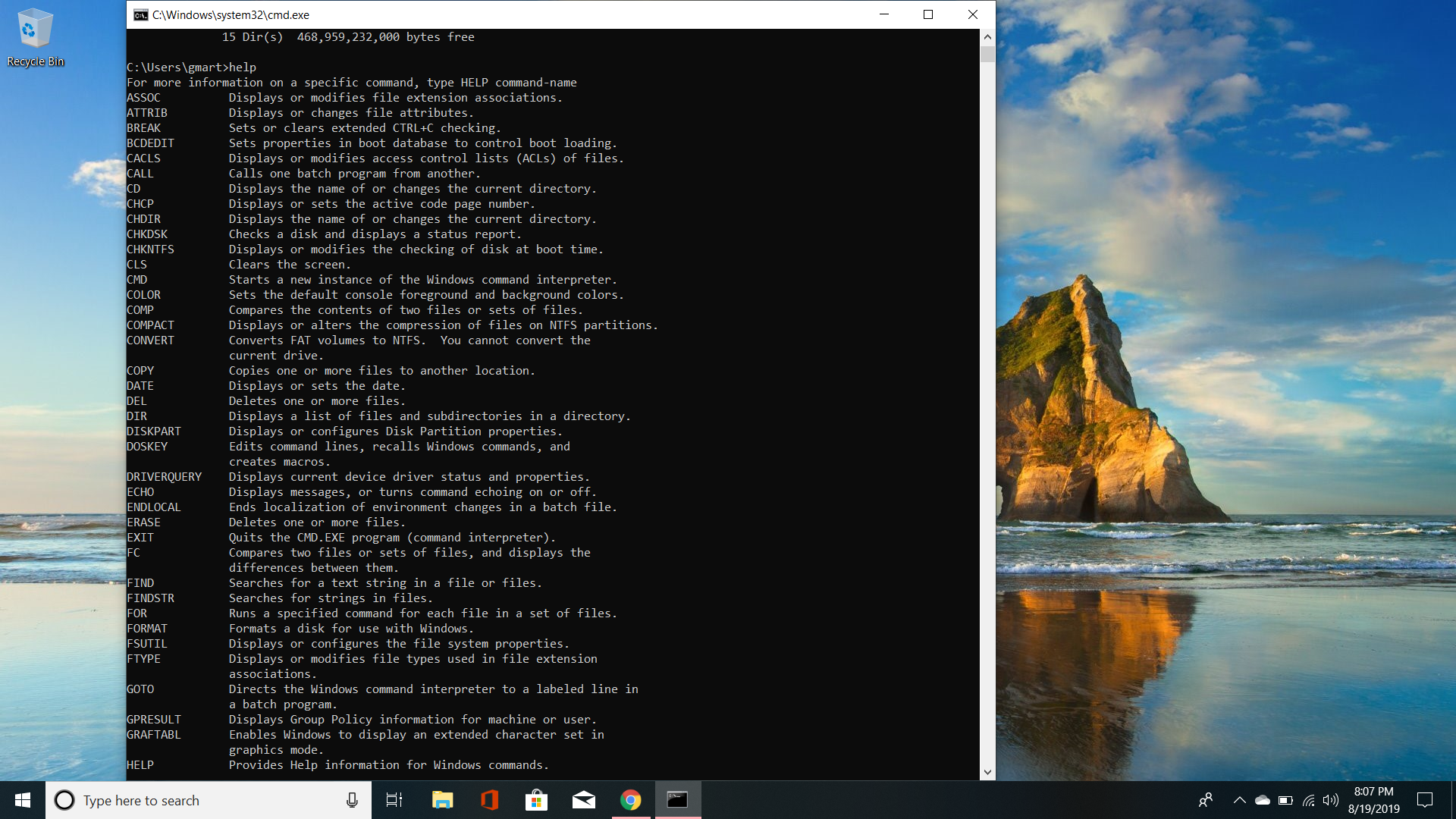
In class we did this with the ls command. However, when I try to do it using Windows, you get an error. So, instead I typed in help. The help command proceeded to show me my options.
Taking my chances, I typed in dir. Well, would you look at that… their are my directories.
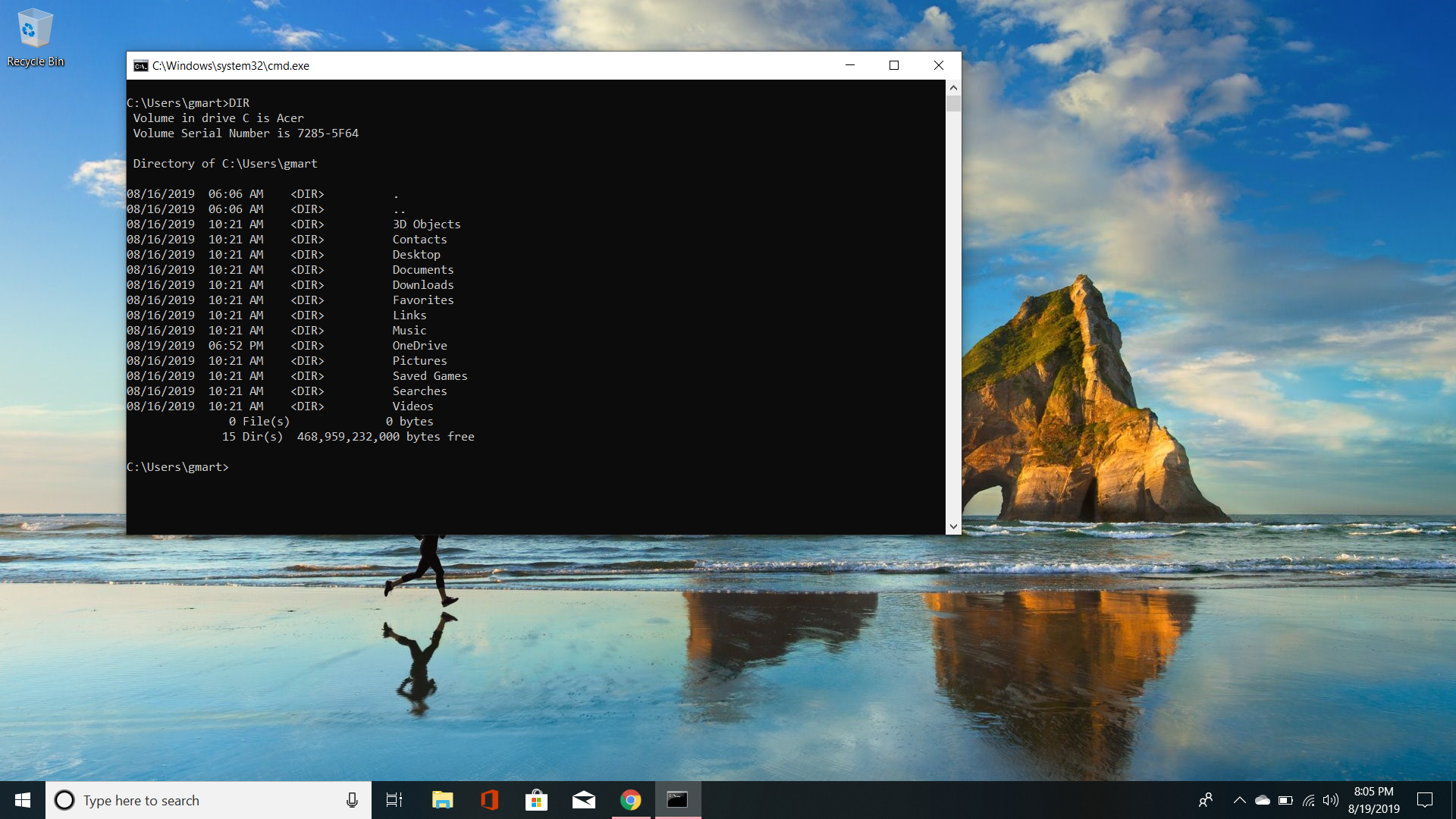
From here, I changed into my Desktop directory and created a file.
To do this, I will use mkdir G_M.
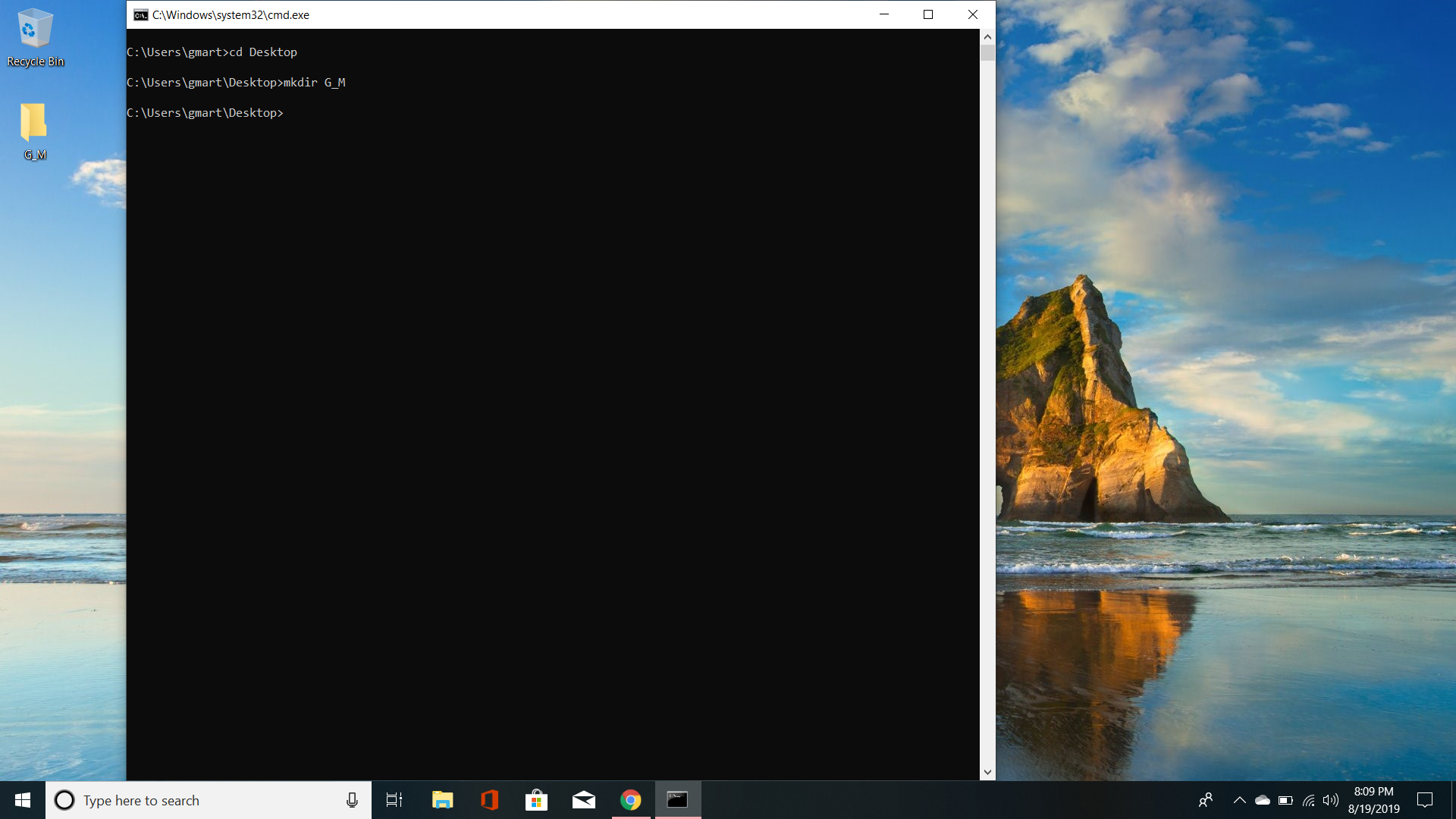
Now, I will demonstrate how to get into the folder and create a file.
So, now I will change into the directory and create a file. To create a file I needed to look at the link below.
https://www.wikihow.com/Create-and-Delete-Files-and-Directories-from-Windows-Command-Prompt
Using the cmd to create a file was not as straight forward as I thought it would be, requiring me to search for references.
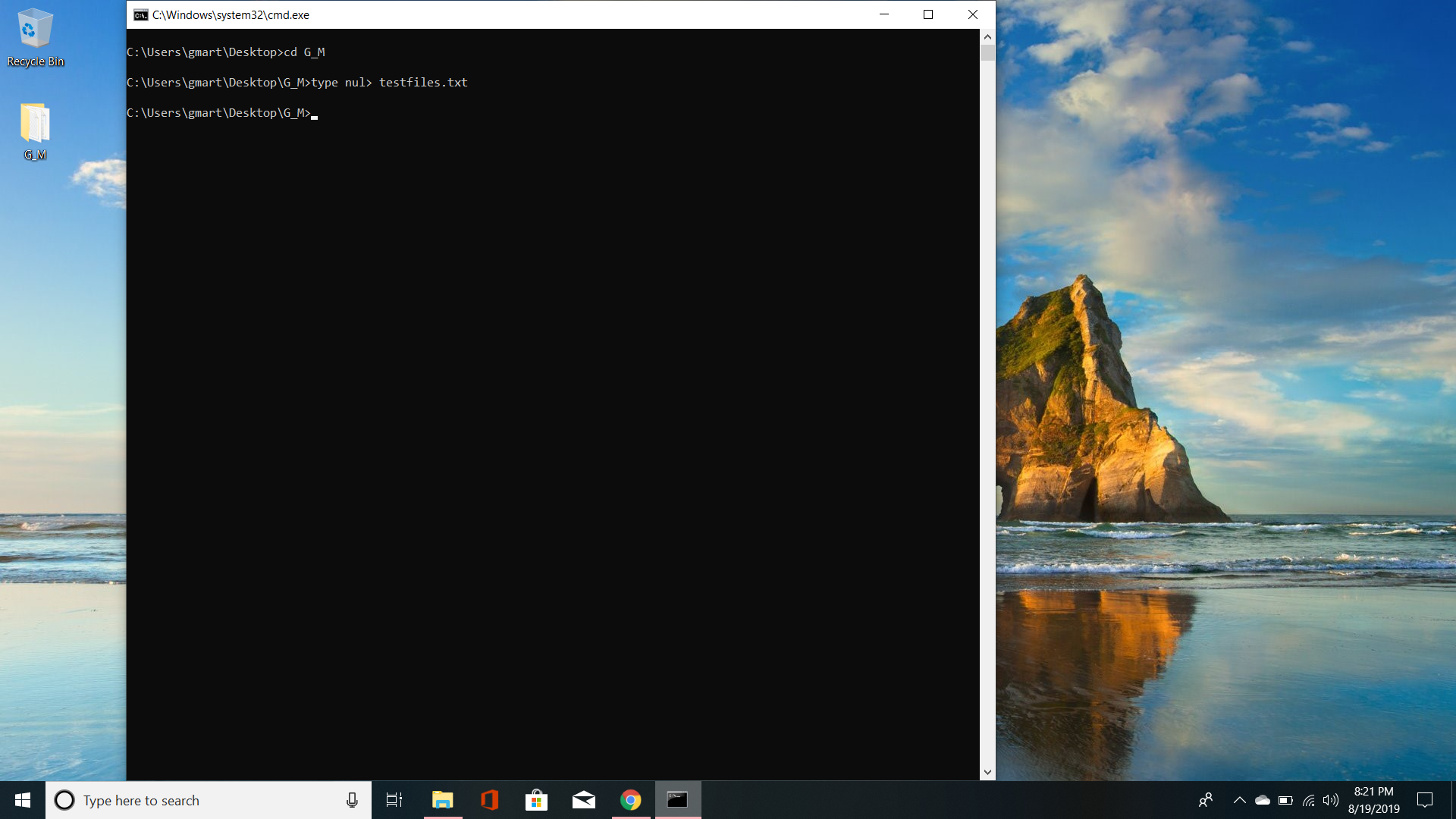
Now, I will check that everything went through properly. To do this I will use dir /s. This extension allows me to see into the sub-directory and files of the parent “root” directory.
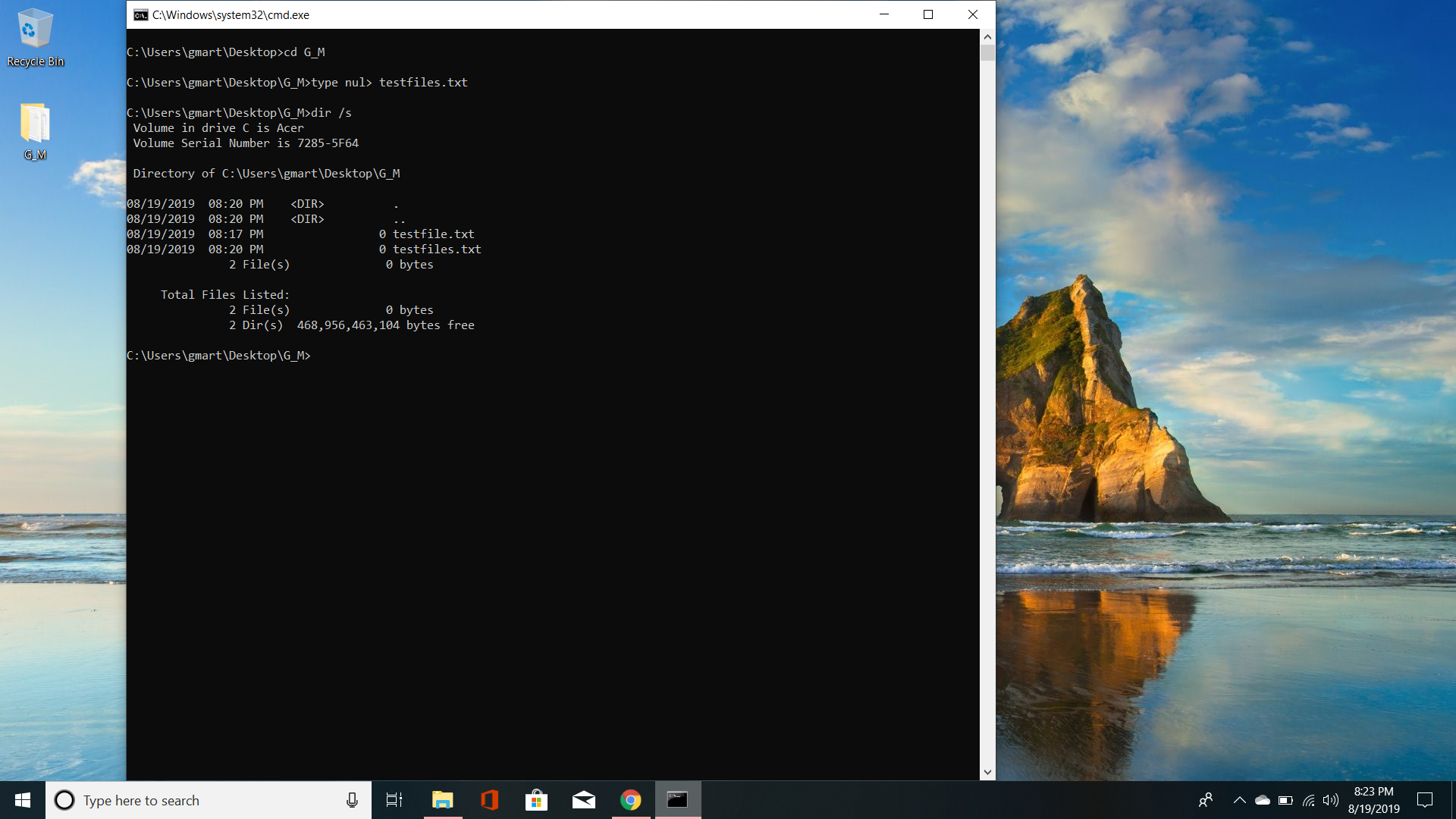
From the little bit of coding I learned in the past, the additional “syntax” allows extra features to the original code itself.
No matter, on to the hard part… how do we delete the files and the directories?
Now, I know this will vary for the MAC terminal but… I’m sure they are pretty close.
Let’s figure this out, starting with the help command. So from what I could find, it says I can use the del command.
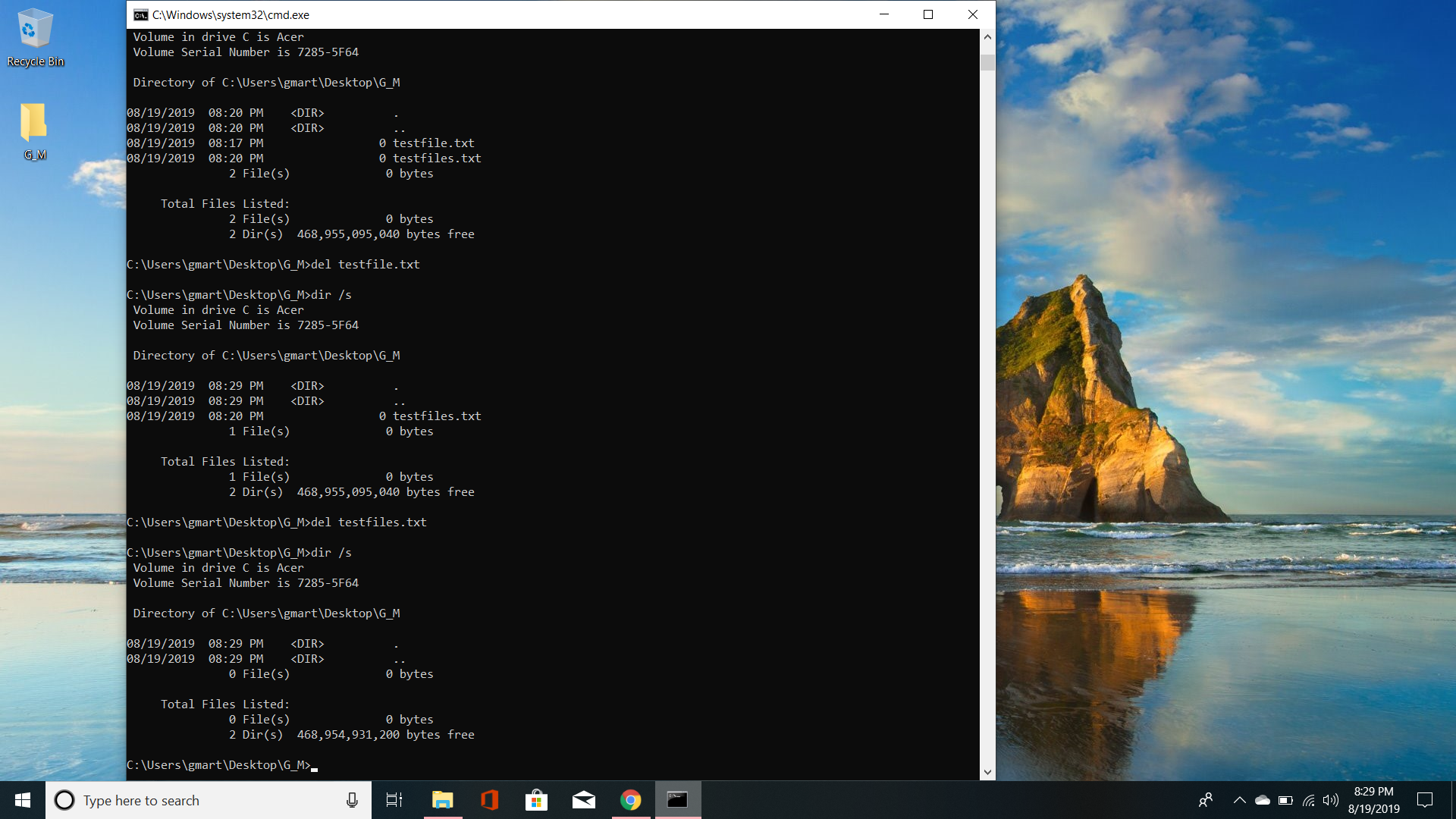
As we can see… it worked. Though, I wonder if i did del /a would it have deleted them? I know there is also a way to del files just based off of the ending of the text file but…. my brain needs a refresher first. Anyways… onto the next step, lets delete this folder. Yay!
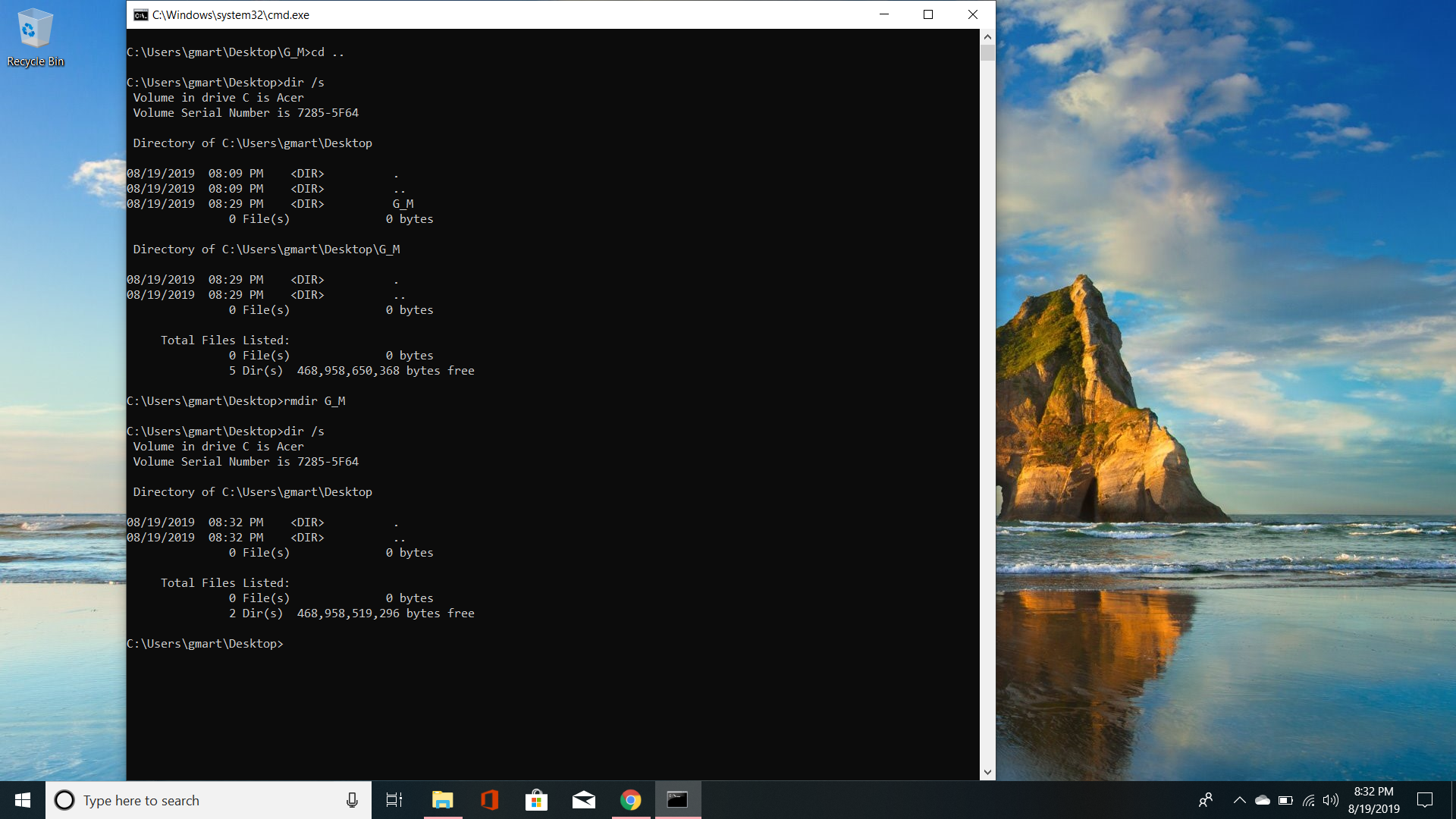
As we can see in order to remove the directory, I needed to exit the directory. So, I used the cd.. to go back to the parent directory . Once back in the root directory I checked that G_M still was listed as a sub directory. I then applied the rmdir command to remove the directory G_M. To make sure everything was successful, I checked the directory using dir /s. As you can see nothing remains under the directory of Desktop. Well there you have it… a quick recap of what I learned today.
I have posted above the wiki how for CMD for Windows as a reference. Also below you will see the most common commands form cmd as a reference. I also used as reference to syntax and how to incorporate it into your cmd later on.
https://www.thomas-krenn.com/en/wiki/Cmd_commands_under_Windows
https://docs.microsoft.com/en-us/windows-server/administration/windows-commands/cmd
 Gabriella's Technology Showcase