Today, was day 6 in my journey to become a front end software engineer. I learned how utilize and implement objects and arrays. What I liked about both objects and arrays is that they are clear, concise, and to the point. They make your coding look neater and more condensed. An array is a data type that can hold strings and numbers. When utilizing an array you can set the values locally to said variables. This will make the computer to have a complete and clear idea of where the variable is to be pulled from and placed. An object is another data type that can contain a number of values, variables, strings, loops, etc. When utilizing an object the computer will look to the object to pull the information that you have already preset. However, in order for the object to function properly you must specify where the computer should check the code. With an object the computer needs special permissions to see into the object in question. In order to not receive a syntax error you must let the computer know where to find your code. In this case if we had set an object as myCircle and we needed to plug in the x coordinate for our ellipse, we would tell the computer ellipse(myCircle.xpos , myCircle.ypos, myCircle.circSize.); In this case the computer will now peak into your object and search for the variable named xpos. Assuming that the name matches the computer will now pull this variable and place the information associated with it in the x position. The same goes for any other variable you call upon.
For homework I created an array to display some words that I wrote on the screen.
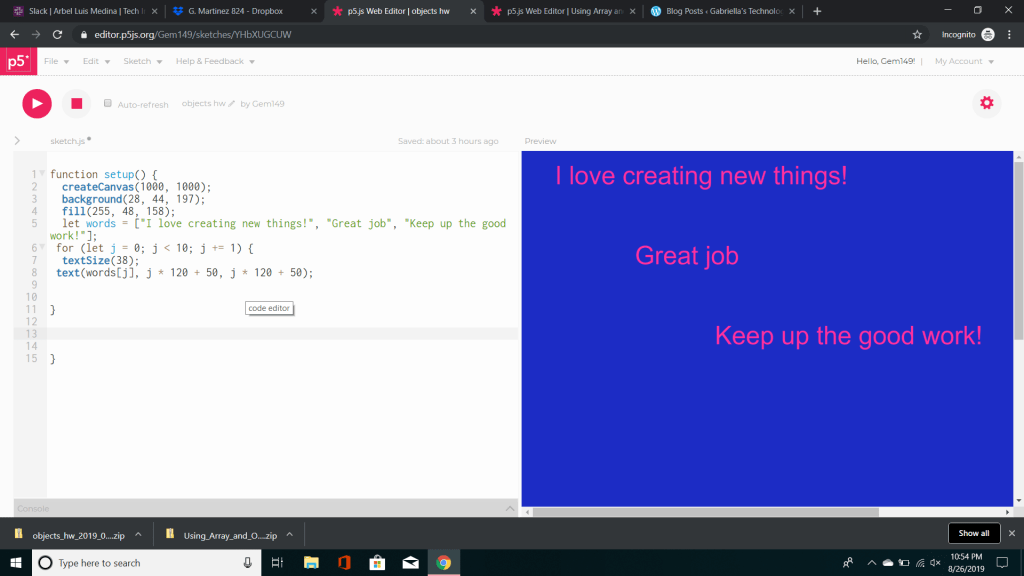
In this example I created an array named words. In the array words, I assigned the variables that I wanted to output. In order for everything to fit I increased the canvas size to 1000. Originally, I had it at 400 but words went missing due to the size constraint. I then created a background using the grey scale. I placed my array lower down my code so that it would appear on my background. I wanted my words to stand out so I used the fill command and entered random numbers for r, g, and b. I then put my array below it to allow the color change to take place. I proceeded to than add the syntax for textSize to increase the font of my words. Lastly, I went to display my text. In the text command I placed words which is my variable followed by j which is equivalent to my x followed by how much spacing I wanted between each string and where I wanted the string to go. The final product resulted in displaying my pink array on the blue canvas.
For the second part of the homework, I created an object that created both a rectangle and a circle before making them move across the screen. I also proceeded to add my sketch to the HTML which in turn could access my code from a different file.
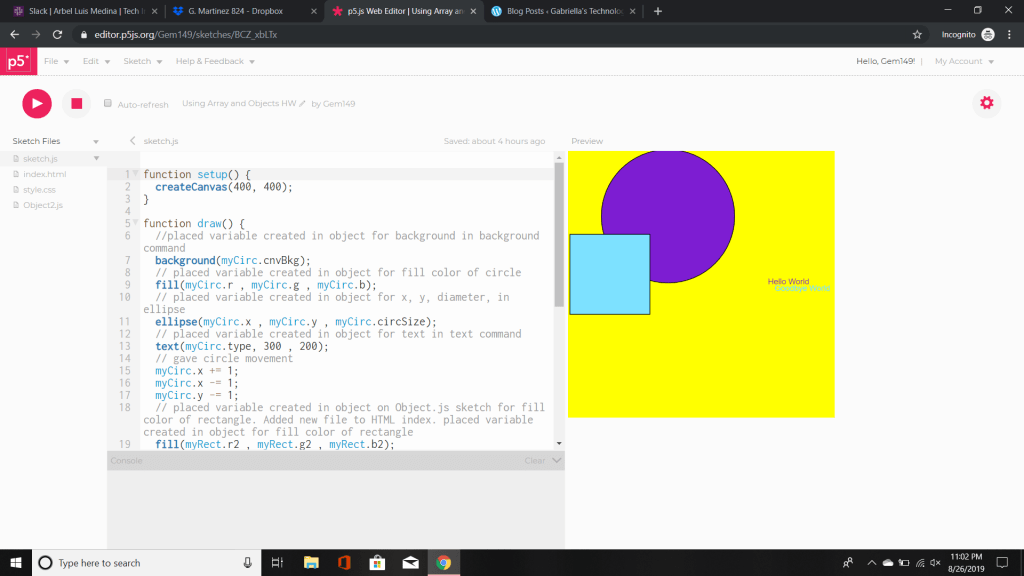
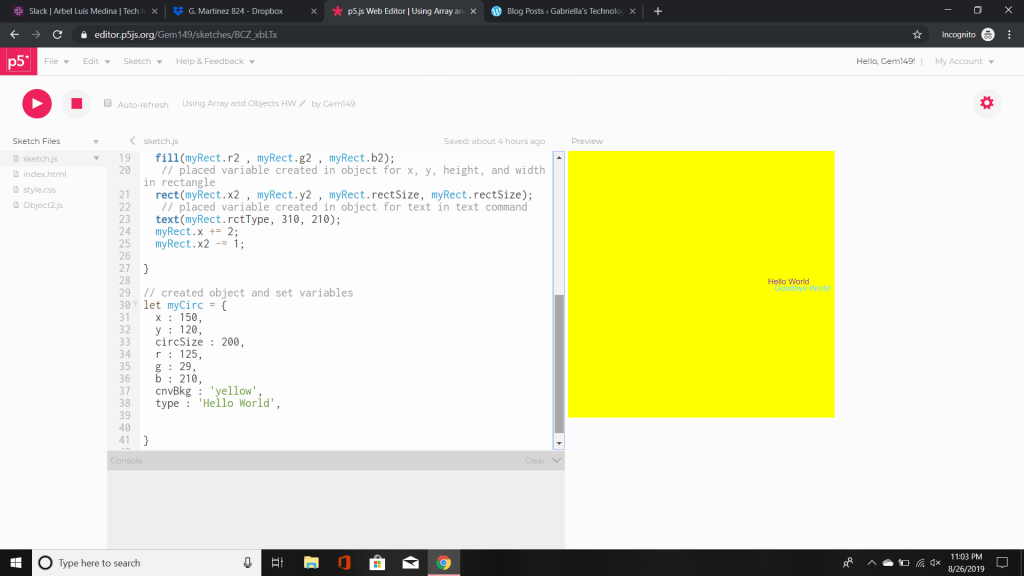
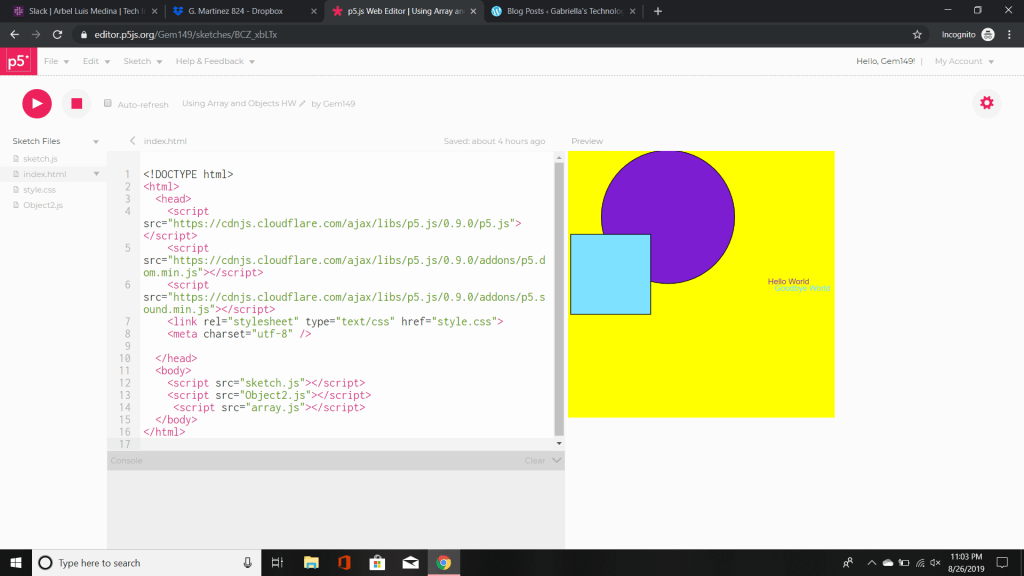
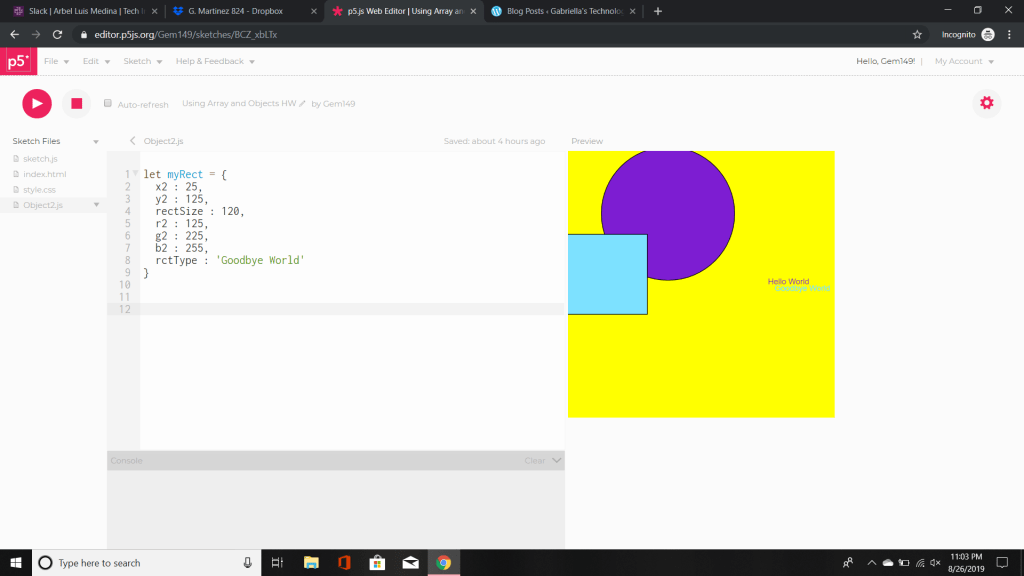
Now, based on what you see above is the final product. It’s organized, concise, and complete. However, that’s not how it all started. In this case I worked from the bottom and made my way up. The first thing I did was create my object. In this case I created my first shape myCirc. In myCirc I listed all the variables that I planned on using including creating myCirc. In myCirc I put the key things that I would need in order to create my circle. That included x, y, circSize, r (red), g (green), b (blue), cnvBkg (canvas background) , and text. Once I created everything I went forward to execute this object but in order to do that I need to plug in the variables within my draw command. In order for the computer to read our object we need to give it permission to access the content being stored inside. To do that we must use the name of the variable in this case myCirc dot and the extension. For example in our images above we want the background to be able to pull the background color from cnvBkg. In order to do that we must tell the computer where to find the variable. So to do this we will type myCirc.cnvBkg. Now the computer can look inside and say hey this is what she is looking for lets take the information from the variable cnv.Bkg and execute it. Now, the reason that the computer needs access to your object’s variables is because the code within the variable is local. It cannot be accessed from anywhere in our code except from it’s source or class. This is different from our global variable which can be placed anywhere within our program. The computer can just pull the information down and apply. The downside of the global variable is that it is messy, uses a lot of memory, and can be reassigned. Whereas, our local variable is set to only our object. It can’t be changed unless we were to change them manually, the global variable even if given the same name as the one within our local variable would not change the information being held by our local variable. Getting back on track, before we run the image we will set the fill for the shape, create the shape, and fill in the information with our text including it’s location. For fun, I decided that I wanted my shape to move so I set the myCirc.x to += 1 and to -= 1. I then set myCirc.y -= 1. What this accomplished was it caused my circle to move straight up and off the canvas. When I took out the second myCirc.x -= and left everything else it caused the circle to move horizontal. The next step I did was create a new file. I went to sketch, add file, named file and added the extension .js. What this did was created a new pj5s file and displayed it on the left hand side tab. This gives us a completely blank canvas to use. But that’s not all by creating a new file we can continue to work on code and have it appear together by adding it to our html file. To do this we went to index.html. Once inside we went to our body. Inside our body was our sketch file, where we previously made our circle. In order for our new work to link with our current code I copied the syntax from our previous file and changed the name to match what we just named the file we created. Once this was complete I moved down the tabs on the left hand side of the screen and entered my new code. As before I then executed my code in the draw command. The outcome is what you see above, two strings of text, a circle that moves upward and a rectangle that moves left before disappearing off screen. I enjoyed working with objects and lightly dabbling with HTML. However, it takes a lot of patience figuring everything out as the smallest errors cause problems. My advice is keep your chin up and ask for help. There was a few moments where it literally came down to a colon here a this there and than it worked. Just keep trying and learning from your mistakes, its the only way that you’ll get better.
 Gabriella's Technology Showcase